Why Your Link Preview Shows the Wrong Image
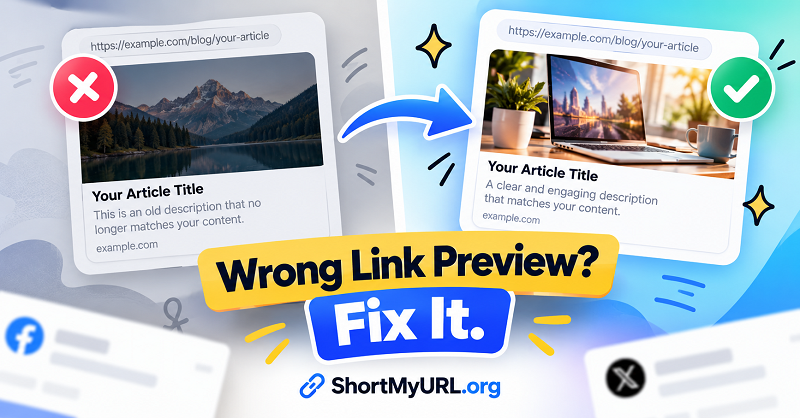
You’ve updated your website, polished the headline, and picked the perfect thumbnail. Then you share the link—and suddenly, there’s an old image staring back at you. Maybe the title is outdated, the description makes no sense, or the preview refuses to appear at all. Not exactly the first impression you had in mind.
- First, Is the Link Broken or Just the Preview?
- Diagnose the Problem by What You See
- Fix the Source Before Blaming the Platform
- Run a Clean Retest on the Platform Showing the Error
- Does a Short URL Change the Preview?
- Build a Better Pre-Publish Test
Here’s the good news: a bad link preview doesn’t automatically mean your website is broken. Social platforms and messaging apps often retrieve page information separately from the way a browser loads the page. That means your content can look perfectly fine when someone visits it directly while the preview still shows yesterday’s news. Let’s figure out what’s actually going wrong and how to fix it.
First, Is the Link Broken or Just the Preview?
Before changing anything, open the URL in a browser and check the destination. Does the page load correctly? Does it display the right content? Can you access it without logging in or jumping through unexpected redirects?
If everything works, you’re probably dealing with a preview problem rather than a broken destination. Link previews typically rely on information that platforms collect from the destination page, including its title, description, and image. Many platforms use Open Graph metadata to determine what appears when a URL is shared.
The distinction matters. If the destination itself is incorrect, you need to fix the URL or its redirect. If the destination works but the preview looks wrong, start by checking the page metadata and the platform’s cached information. Otherwise, you could spend an hour fixing the wrong thing.
Diagnose the Problem by What You See
Different preview failures point toward different causes. Instead of randomly changing images or reposting the same link, match the symptom to the most likely explanation.
| What you see | What to investigate |
|---|---|
| An old thumbnail | Cached preview data or an outdated og:image value |
| The wrong headline | Incorrect og:title metadata or cached information |
| No image at all | Missing metadata, an inaccessible image URL, or an image the platform cannot process |
| No preview whatsoever | Page accessibility, redirects, metadata, or platform-specific restrictions |
| A preview from another page | Redirect behavior, canonical URL configuration, or metadata on the destination |
These are starting points, not guaranteed diagnoses. Platforms differ in how they fetch pages, follow redirects, cache information, and decide whether to display a preview.
Fix the Source Before Blaming the Platform
If the preview shows the wrong image or title, inspect the HTML of the destination page first. Open the page source and look for its Open Graph tags. A typical implementation looks like this:
Replace the example values with the actual information for your page. The og:title tag provides the intended title, og:description supplies the description, and og:image identifies the image you want platforms to use. The og:url tag identifies the page's preferred URL.
Check the image URL carefully. It should point directly to an image file, not to a page containing that image. Make sure the image is publicly accessible, uses a supported format, and meets the platform’s current image requirements. An image that loads for you while logged into your website may still be inaccessible to an external crawler.
Also check for duplicate Open Graph tags. If your theme and SEO plugin both generate metadata, they may produce conflicting values. A page can contain the right tag and still behave unpredictably if another tag tells the platform to use a different image or title.
One more thing: make sure the metadata belongs to the page people actually reach. If the URL redirects to another page, the platform may inspect the final destination rather than the original address.
Run a Clean Retest on the Platform Showing the Error
Once the source metadata is correct, test the URL again using the platform’s own preview inspection or debugging tool, where available. Some platforms let you request a fresh scrape, which can help replace outdated cached information.
This is especially important when you've just changed a thumbnail or headline. Many platforms store preview data to avoid repeatedly fetching the same page. Updating your website doesn't necessarily force them to retrieve the new version immediately.
If the preview remains incorrect, check the refreshed result rather than assuming the first attempt failed. Verify that the platform can access the page and its image, then inspect the metadata it actually detects. This can reveal whether the problem is still in your HTML, involves access restrictions, or comes from cached information.
Avoid repeatedly publishing the same URL in the hope that the preview will magically repair itself. Reposting alone may not trigger a fresh scrape. Fix the underlying issue first, then use the platform's available refresh mechanism.
Does a Short URL Change the Preview?
Not by itself. A shortened URL generally redirects visitors to another address; it doesn't automatically rewrite the destination page's Open Graph metadata or create a better thumbnail.
When someone shares a shortened link, the preview behavior depends on the platform and how it processes the redirect and destination page. Some platforms may follow the redirect and retrieve metadata from the final page, while others may handle particular redirect patterns differently. That's why a short link can work perfectly for visitors but still produce an unexpected preview on a specific platform.
If you want a cleaner address for social posts, newsletters, presentations, or customer messages, a short url can make your links easier to share and recognize. ShortMyURL lets you create short links for free, but remember that the destination page still needs correct metadata if you want a reliable preview.
Think of these as two separate jobs: your shortened link makes the address more convenient, while your destination page controls the content available for the preview. Getting both right gives you a much better sharing experience.
Build a Better Pre-Publish Test
You don't need a complicated workflow to avoid most preview surprises. Before publishing an important link, confirm that the destination loads correctly, check that the Open Graph title and description match the page, and verify that the intended image is accessible without authentication.
Next, inspect the link using the preview tools available on the platform where you'll share it. If you've recently changed the page, request a refresh when supported and verify the updated result. For campaigns with several destinations, test each important URL rather than assuming one successful preview means every page is configured correctly.
Finally, keep your expectations realistic. Different platforms may display different preview layouts, crop images differently, or choose alternative metadata. You can provide clear, accurate information, but you cannot guarantee identical previews everywhere.
A wrong thumbnail is annoying, but it doesn't have to derail your next campaign. Find out whether the issue comes from the destination, the metadata, or the platform's cache—and fix that specific problem. Your links will be easier to share, your previews will be more dependable, and your audience will have fewer reasons to hesitate before clicking.