The Link Works for Me but Not Others? Here's Why
You send a document to a client, drop a resource into a team chat, or share a link with a customer who needs it right now. Everything looks fine on your screen. Then comes the message nobody wants to deal with: “I can't open it.” You click the same link again, and boom — it works perfectly. So what's going on?
- A Working URL Doesn't Guarantee Access
- Four Error Messages That Reveal Where to Start
- Run the Recipient Test Before Sending the Link Again
- Fix the Permission Problem at Its Source
- Would a Shorter URL Fix the Problem?
- The Final Check: Six Things to Verify Before You Hit Send
- A Better Link Starts With a Better Destination
Here's the catch: a link that works for you isn't necessarily a link that works for everyone. Your browser might already be signed in, your account might have special permissions, or the resource might be available only to a specific group of people. From your side, the link looks flawless. From theirs, it's a digital dead end. Before you resend it for the fifth time, let's figure out what's actually broken.
A Working URL Doesn't Guarantee Access
A URL is an address, not a permission slip. It tells a browser where to go, but it doesn't automatically grant access to whatever lives there. That distinction matters more than most people realize.
Imagine sharing a spreadsheet with someone outside your company. You can open it because you're the owner or because your work account has permission to view it. The recipient, however, sees a request-access screen. The URL itself may be completely correct; the sharing settings are what stand between the recipient and the content.
The same problem can happen with cloud storage, project management platforms, internal dashboards, online forms, and password-protected pages. A link can be valid while the destination remains restricted. That's why repeatedly copying and pasting the same URL rarely solves the problem. You need to investigate what happens after the recipient clicks.
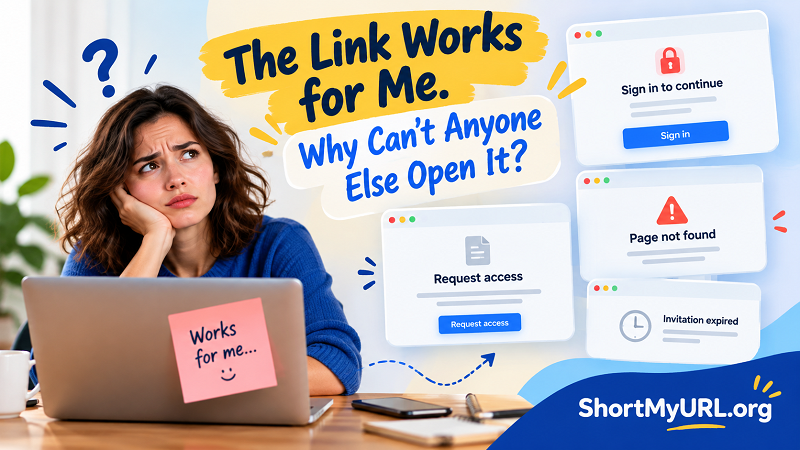
Four Error Messages That Reveal Where to Start
The exact message on the recipient's screen can provide useful clues. It won't always identify the root cause, but it can help you narrow down the possibilities without playing technical detective for an entire afternoon.
| What the recipient sees | What might be happening | What to check |
|---|---|---|
| “Request access” | The resource is restricted to approved users. | Sharing permissions and the recipient's account. |
| “Sign in to continue” | The destination requires authentication. | Whether the recipient needs an account or an active session. |
| “Page not found” | The URL may be incorrect, outdated, or pointing to a resource that has moved or been deleted. | The original address and the resource's current status. |
| “Invitation expired” or “Invalid invitation” | An access invitation may have expired, been revoked, or become invalid. | The invitation status and whether a new one is needed. |
Don't treat these messages as definitive diagnoses. Different services use different wording, and some deliberately hide details for security reasons. A “not found” page, for example, can sometimes appear when a user lacks permission to view a resource. Use the message as a starting point, then verify the destination and its access rules.
Run the Recipient Test Before Sending the Link Again
Here's a simple test that catches a surprising number of sharing problems: open the link in a private or incognito browser window. Because that window typically starts without your existing website sessions, it can reveal whether the link depends on a login you're taking for granted.
Paste the URL into the new window and observe what happens. Does the intended page load? Are you redirected to a login screen? Does a permission warning appear? Does the browser land on a completely different destination? Each result gives you a clue about what the recipient might experience.
However, private browsing isn't a perfect simulation of another person's setup. A public page may behave differently for users in certain regions, while a company document may require an authorized account even when the URL is correct. If the resource is meant for a particular person or group, test it using an account with the same level of access as the intended recipient.
For important links, don't stop at the first successful page load. Check whether the recipient can actually view the content, complete the intended action, or download the necessary file. Opening a page and being able to use it are two different things.
Fix the Permission Problem at Its Source
Once you've identified the likely issue, fix the destination before distributing the URL again. If you're sharing a cloud document, review its access settings and select the appropriate audience. Depending on the service, that might mean inviting specific email addresses, granting access to members of an organization, or allowing anyone with the link to view the resource.
Be deliberate about the access level. Someone who only needs to read a document probably shouldn't receive editing privileges, and confidential material shouldn't become publicly accessible just to avoid a support request. Convenience is useful; an accidental data leak is not.
If the link leads to an account-based service, confirm that the recipient has the required account and that any invitation remains valid. For a page that has moved, replace the outdated address with the current one. If the original resource has been deleted, recover it or provide an alternative destination.
After making the change, test the link again under the recipient's expected conditions. Then resend it with a short explanation if necessary. This is much more effective than repeatedly forwarding an unchanged URL and hoping the problem magically disappears.
Would a Shorter URL Fix the Problem?
Sometimes the issue really is the URL. A long address can be awkward to copy, difficult to read, and easy to break when it passes through messaging apps, emails, or documents. In those cases, shortening the address can make sharing cleaner and more manageable.
A short url generator can turn a lengthy destination into a compact link that's easier to distribute. Short links can also be useful when space is limited or when you want a cleaner-looking URL in a campaign, presentation, or printed material.
But let's draw a firm line here: shortening a URL does not fix access permissions. If the original destination requires a login, the shortened link will still lead to a destination that requires a login. If the recipient isn't authorized to view a private document, changing the length of the address won't grant permission. And if the original resource has disappeared, a shorter link won't bring it back.
The smart move is to verify the destination first, correct any access restrictions, and then use a shortened URL if it makes the link easier to share. You can create a cleaner link without confusing presentation problems with actual access problems.
The Final Check: Six Things to Verify Before You Hit Send
Before sharing a link that matters, take a moment to run through this checklist:
- Confirm the destination. Make sure the URL points to the correct page, document, or resource.
- Check the audience. Verify that the intended recipients are included in the sharing permissions.
- Test the login requirements. Determine whether recipients need an account, a particular organization login, or an invitation.
- Verify the resource is still available. Make sure it hasn't been deleted, moved, or replaced with an outdated version.
- Test the actual experience. Open the link in a clean browser session and, when necessary, use an authorized test account.
- Confirm the task can be completed. If recipients need to read, download, submit, or edit something, make sure they can perform that action.
These checks take much less time than untangling a failed handoff after a deadline has passed. They're especially worthwhile for client deliverables, onboarding materials, event registrations, and documents that multiple people need to access.
A Better Link Starts With a Better Destination
When someone tells you a link doesn't work, don't immediately assume the URL is broken. The address may be perfectly valid while the destination is restricted, the recipient is signed into the wrong account, or the resource has changed since you last opened it.
Start with the recipient's error message, test the link outside your usual browser session, and correct the underlying issue before sending it again. Once the destination works under the right conditions, make the URL as convenient to share as you need.
Because the real goal isn't simply to send a link. It's to make sure the person on the other end can actually use it.